Invoice a visit and get paid
Turn a finished visit into an invoice, add prices from your price book, lock it, send it, and record the payment. The whole money loop on one real $45 mow.
7 steps · about 8 minutes
- 1
Start from the finished visit
Visit → Complete → Bill this visit →
When the job is done, open the visit and click Complete. At the bottom of the completed visit is "Bill this visit →". It creates a draft invoice with the customer already filled in.
No visit to start from? "New invoice" on the dashboard starts a blank one. Pick the customer (or "Add new") and you have the same draft.
A draft is private until you finalize it. Nothing is sent, and you can change anything.
Customers can view an invoice but can't pay it online until you connect payments. The yellow note at the top of the invoice has a Connect payments → link.
Marcus Holloway's 11:00 AM mow was marked Complete, and "Bill this visit →" opened draft INV-0001 billed to Marcus with his email and phone.
- 2
Add lines from your price book
The invoice → Line items → From catalog
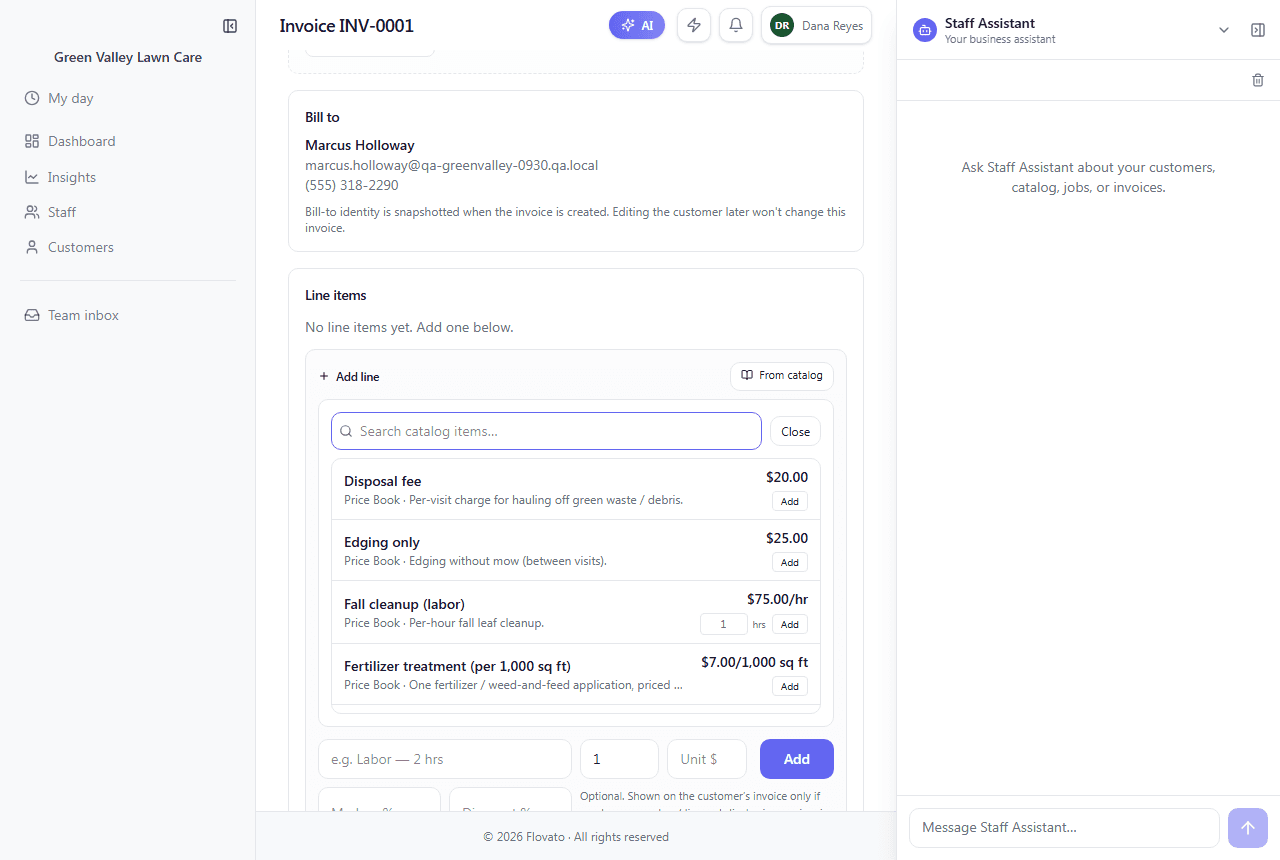
"From catalog" searches the price book your chat quotes from, so the invoice matches what the customer was told. Every item shows its price, and Add puts it on the invoice with its description. Hourly items have an hours box beside Add.
For anything that isn't in the book, type a description, quantity, and unit price in the row below and click Add. The subtotal and total update as you go.
Searching "mowing" found Weekly lawn mowing — base visit at $45.00. One click on Add, and the total read $45.00.
- 3
Set the due date
The invoice → Invoice settings
Below the line items, Invoice settings holds the dates and extras. The payment-terms buttons (Due on receipt, Net 15, Net 30, Net 60) fill in the terms, and Save changes sets the due date. You can also add a service date (when the work was done), a PO number, a job address, a discount, or notes that print on the invoice.
Everything here is optional, so a one-truck operation can skip all of it.
Net 15 on an invoice issued September 30 set the due date to October 15.
- 4
Finalize — the lock is the point
The invoice → Finalize invoice
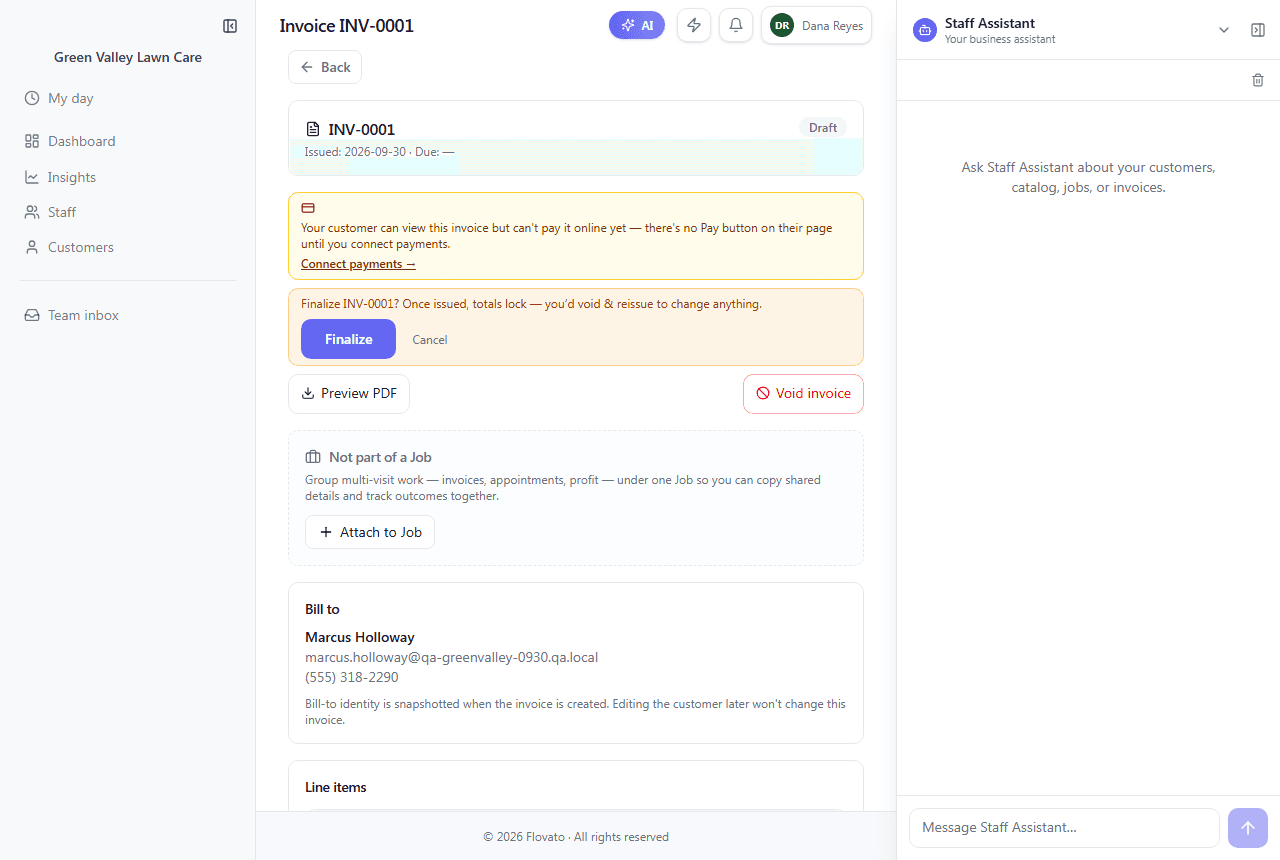
A draft becomes a real invoice when you finalize it, and it asks first: "Finalize INV-0001? Once issued, totals lock — you'd void & reissue to change anything."
The lock is what makes the invoice trustworthy: once the customer has seen a number, it can't quietly change. If something is genuinely wrong, click "Void invoice" and issue a new one. The history stays intact.
- 5
Send it
The invoice, once issued
An issued invoice has three ways out: "Send by email", "Download PDF" to print or attach yourself, and "Open public view", a secure private link you can text to the customer.
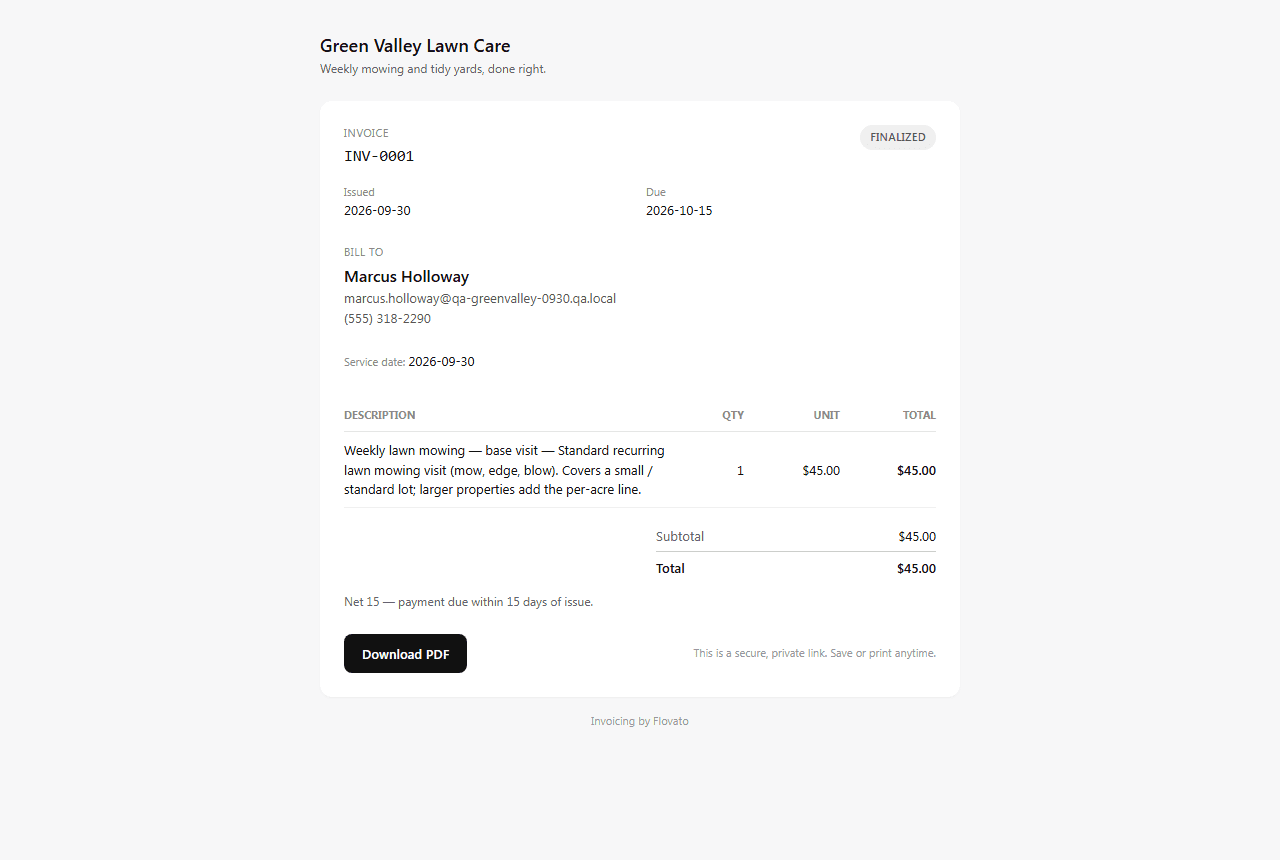
The public view is what your customer sees: your business name and tagline, the invoice number, issue and due dates, the line items, the total, your payment terms, and a Download PDF button. They don't need an account; the link is the key.
Marcus's link shows Green Valley Lawn Care, "Weekly mowing and tidy yards, done right.", INV-0001, issued 2026-09-30 and due 2026-10-15, $45.00, and "Net 15 — payment due within 15 days of issue."
- 6
Record the payment
The invoice → Payments → Record a payment
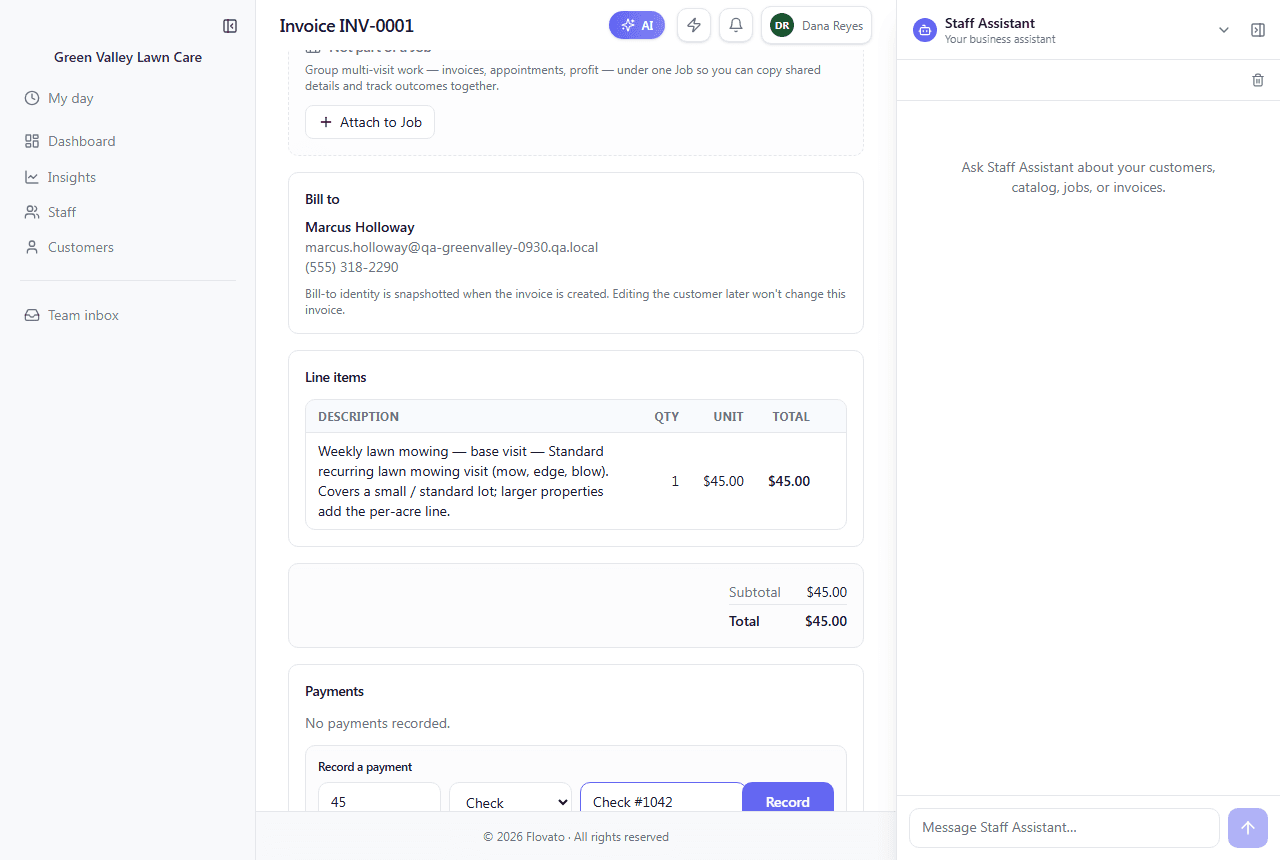
When the money comes in, record it on the invoice. The amount box shows what's still owed ("up to $45.00"). Choose how they paid (Cash, Check, External for transfers, or Other), add a note like the check number, and click Record. The invoice turns Paid. Partial payments work the same way, and the invoice shows Partial until the rest arrives.
You don't have to open each invoice to chase money. Every unpaid invoice sits on the dashboard under "Money to collect" with the amount due and three buttons: Mark paid, Send reminder, and Open.
Marcus paid by check. Recording $45 with the note "Check #1042" turned INV-0001 Paid, and "Money to collect" on the dashboard went back to "No outstanding invoices."
- 7
Or just ask your Staff Assistant
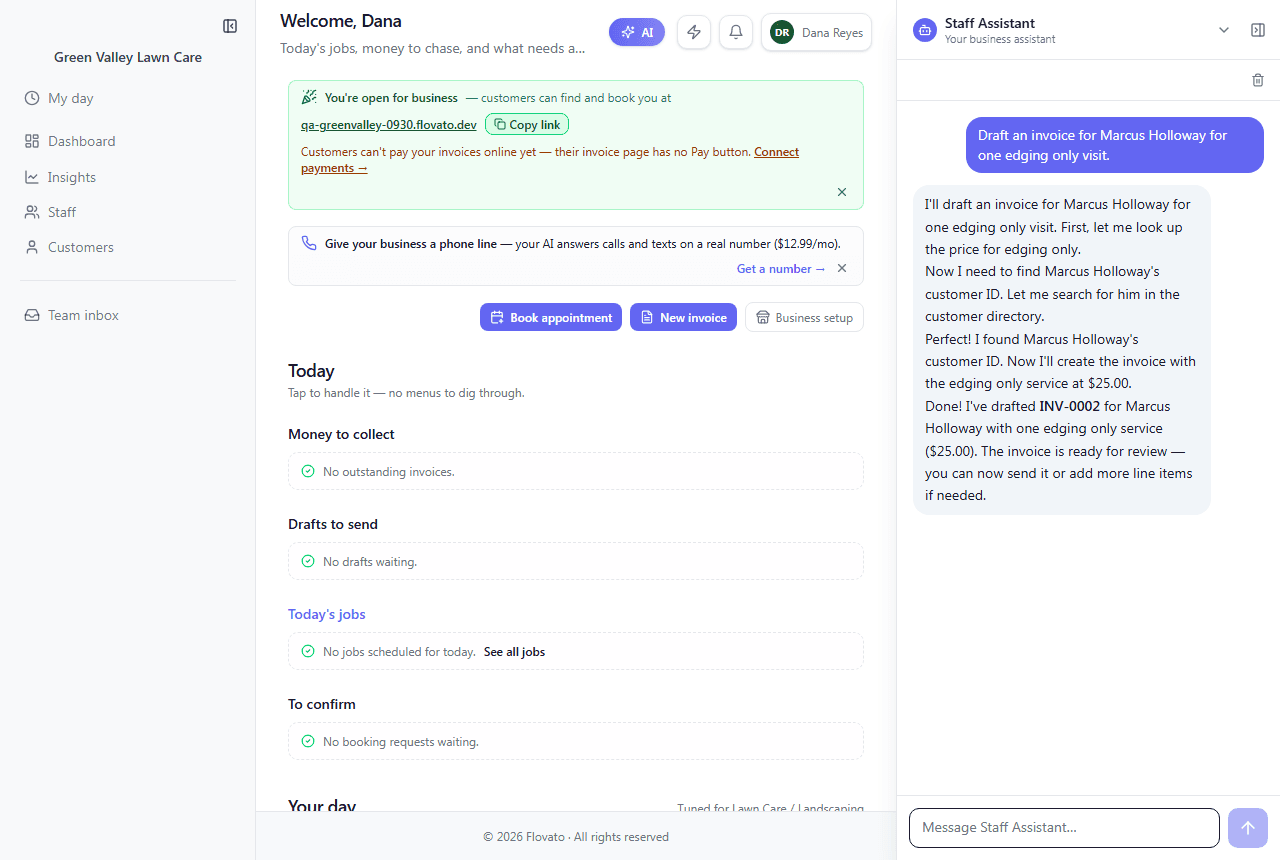
Staff Assistant — the panel on the right of every screen
The Staff Assistant panel on the right side of the app can do the clicking for you. Tell it what you want in plain words. It finds the customer, looks up the price in your price book, and makes the draft.
It stops at a draft on purpose: you still review it, finalize it, and send it yourself.
Or just ask your Assistant: We typed "Draft an invoice for Marcus Holloway for one edging only visit." It looked up the edging price, found Marcus, and answered: "Done! I've drafted INV-0002 for Marcus Holloway with one edging only service ($25.00)."
Ready to try it?
Signing up and running the setup wizard takes about 25 minutes, and the built-in Help assistant is there whenever you get stuck.
Request early access