Take bookings — from your chat and by hand
Decide what customers can book, book a visit yourself from the dashboard, confirm it, and find it on your calendar and My Day. Shown end to end with a real booking.
6 steps · about 7 minutes
- 1
Decide what customers can book
My business → General tab → Service Appointments → Booking Types
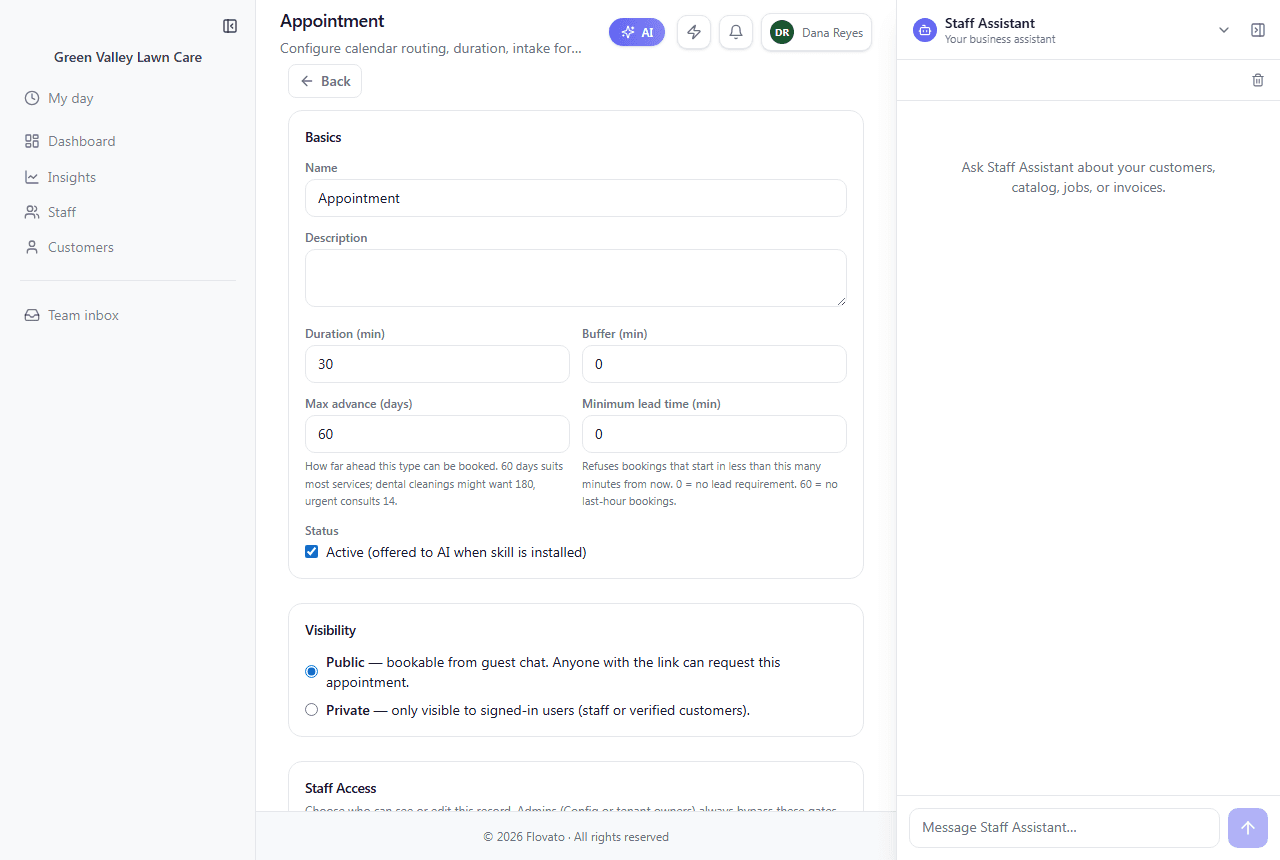
Each visit type is one thing a customer can book. It has a name, a duration, and rules. Your trade setup creates one to start with: "Appointment", 30 minutes, set to Public so it can be booked from your chat.
Open it to change it, or add more with "New Type". What's worth knowing on this page: "Max advance (days)" limits how far ahead someone can book (60 days suits most services). "Minimum lead time" stops last-minute bookings (60 means no bookings in the next hour). Visibility is Public (bookable from your chat) or Private (staff and verified customers only). The "Property Notes" preset makes the booking collect gate code, lot size, mowing frequency, and pets up front.
Bookings from your chat don't confirm themselves unless you tick "Auto-confirm bookings from guest chat" on the type. Out of the box, every booking waits for you under "To confirm" on the dashboard, so nothing lands on your calendar you haven't seen.
- 2
Your hours are your open slots
My business → General tab → Hours
Customers are only ever offered times when you're open. The slots come from the hours and holidays you set in the setup wizard, minus anything already booked.
If a time you'd never work shows up, or a time you would doesn't, check the Hours pill first, and check the timezone while you're there. A wrong timezone shifts every slot.
- 3
Book a visit yourself
Dashboard → Book appointment
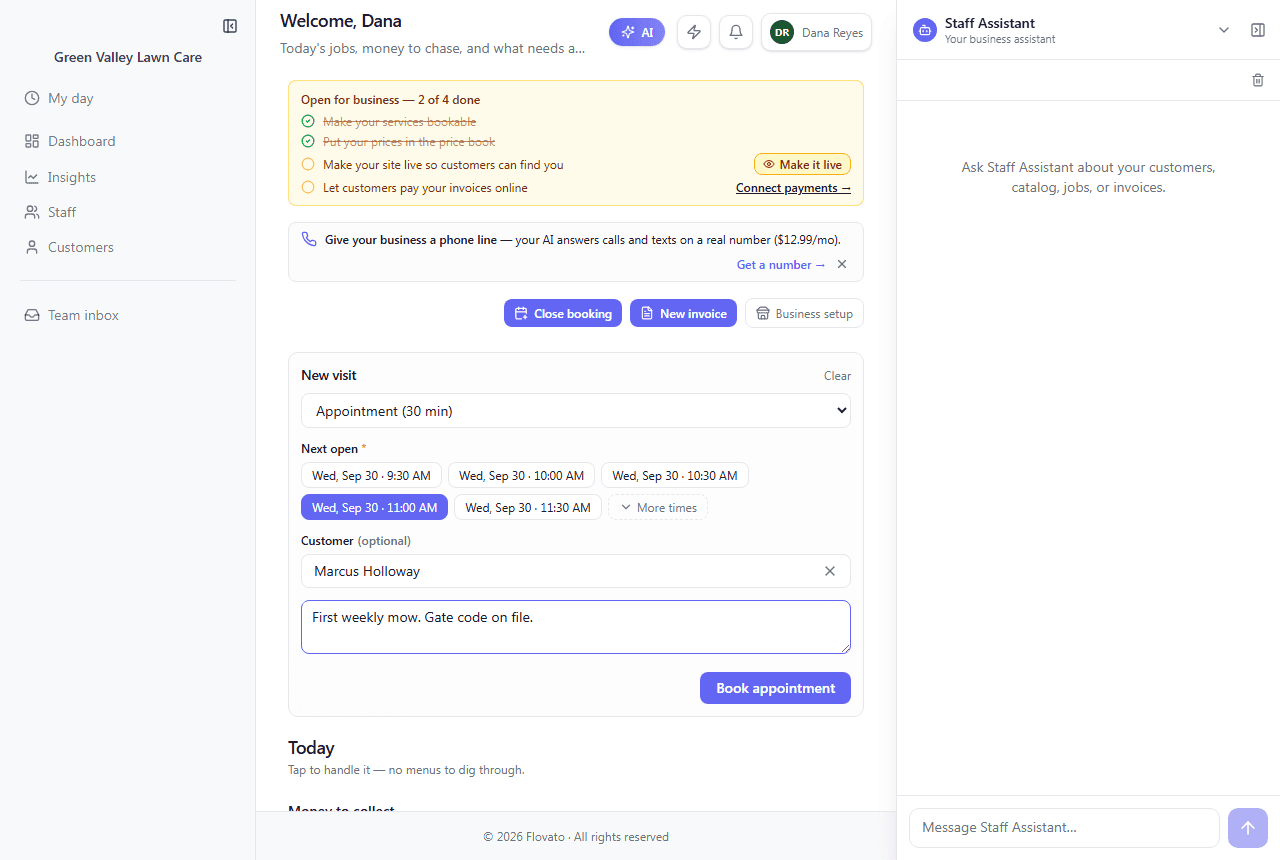
For phone calls and walk-ins, click "Book appointment" on the dashboard. Pick the visit type and a "Next open" list appears with real free slots. Tap one, or use "More times" to look further out.
Customer is optional. Search by name or phone, or use "Add new" to create them on the spot. Add a note for your crew if you like (notes are internal and never shown to the customer), then click "Book appointment".
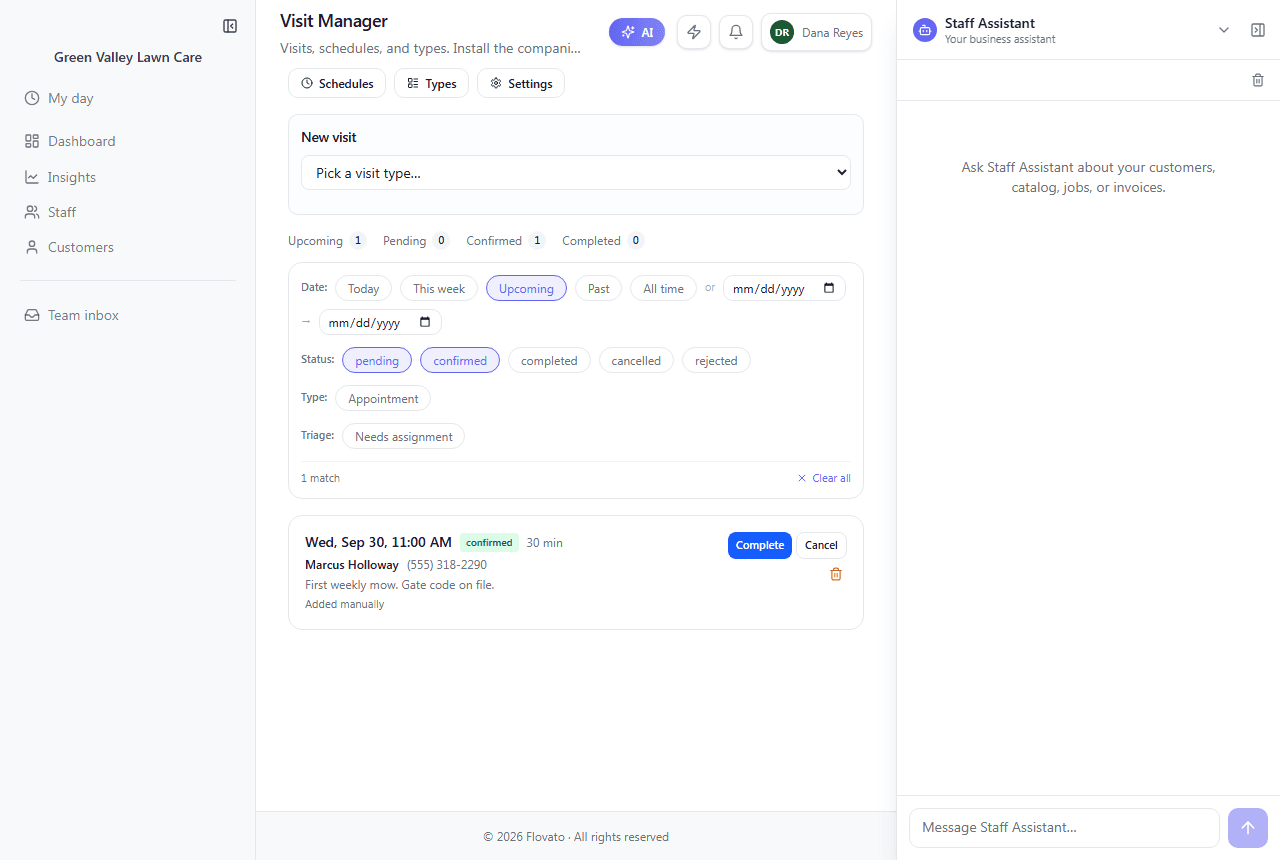
On Wednesday morning Green Valley's form offered 9:30, 10:00, 10:30, 11:00 and 11:30. Dana picked 11:00 AM for Marcus Holloway, typed "First weekly mow. Gate code on file.", and booked it.
- 4
Confirm it
Dashboard → To confirm
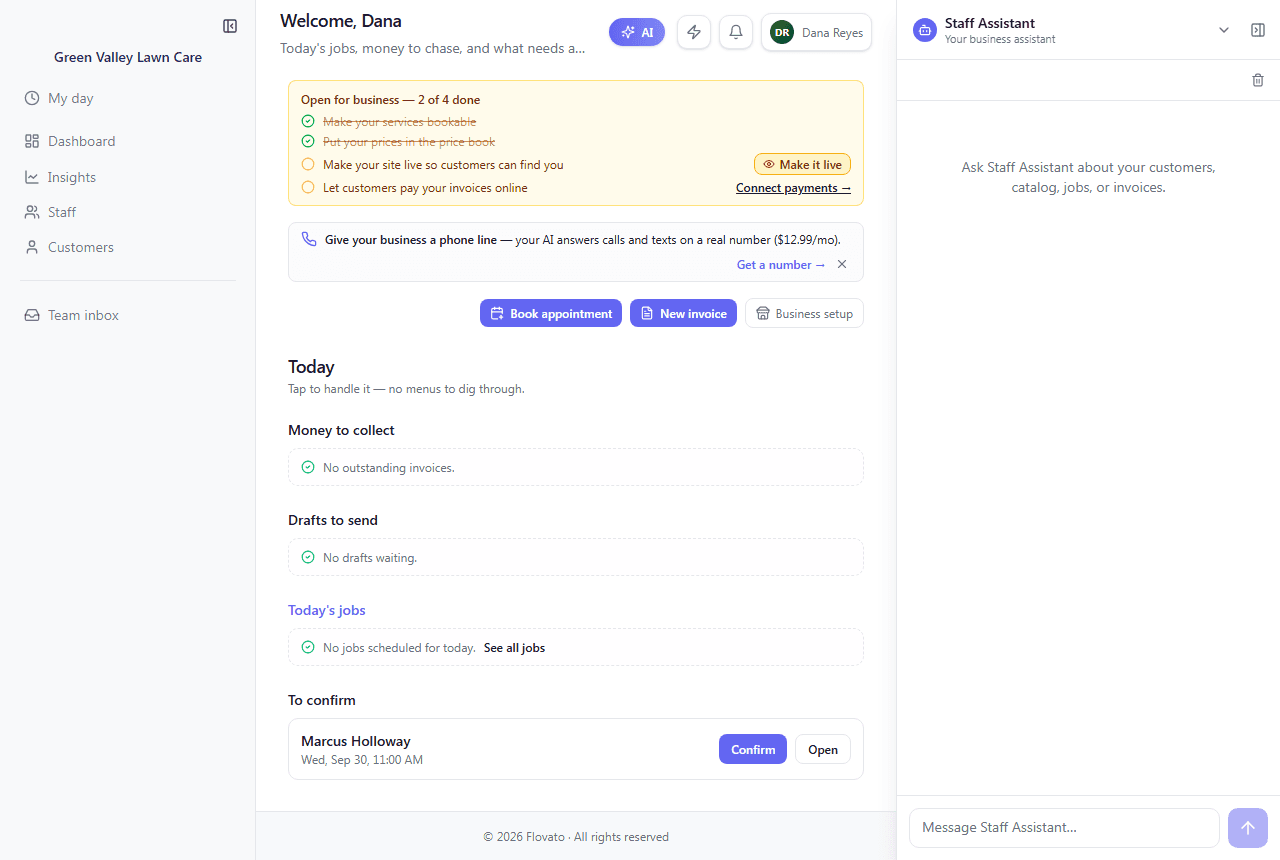
New bookings wait under "To confirm" on the dashboard, with the customer's name and time and two buttons: Confirm and Open.
Confirm locks it in. Open shows the full visit: the customer's phone, email, and property notes (gate code, pets, lot size), the day's schedule, and Before/After photo buttons.
- 5
Let customers book from your chat
Your web address — the public chat
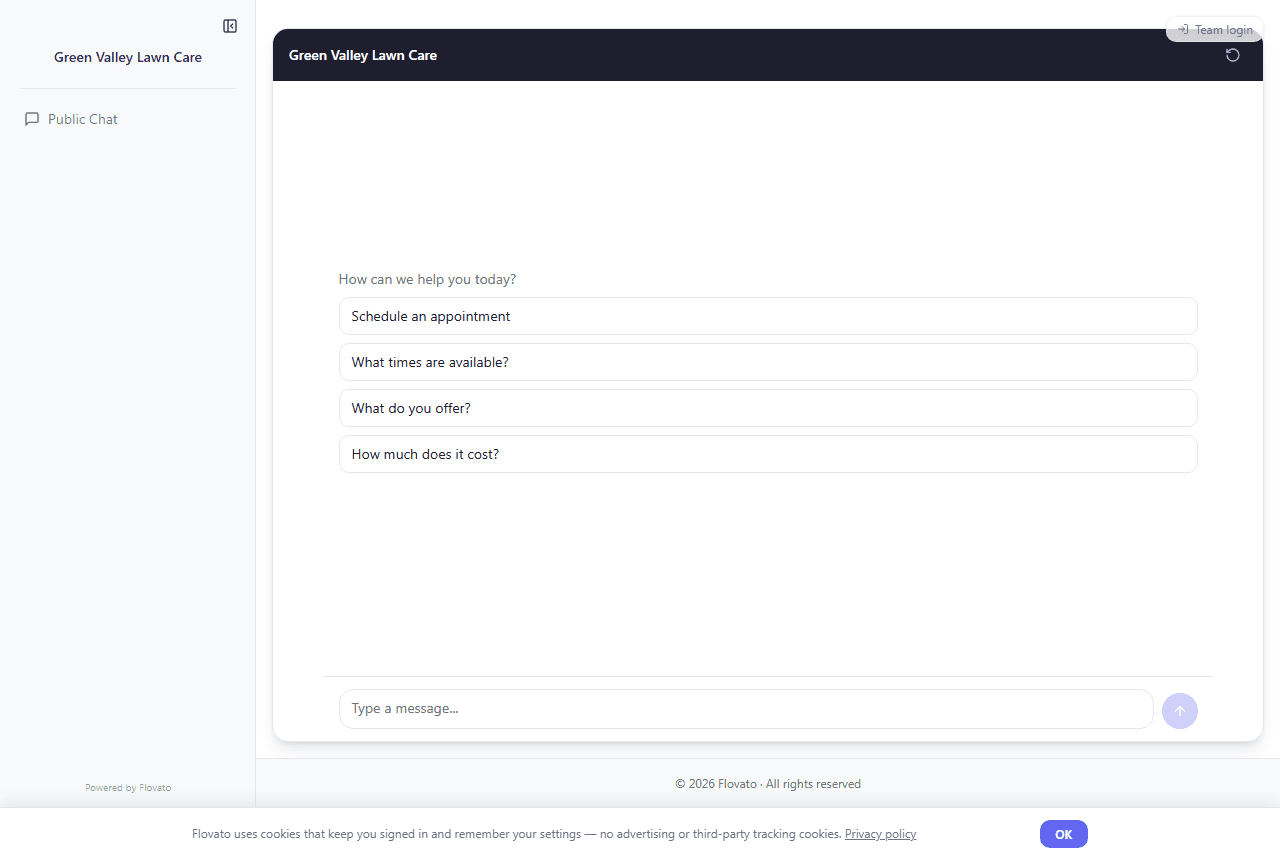
Once you're live, anyone who opens your web address gets your chat, starting with "How can we help you today?" and buttons for Schedule an appointment, What times are available?, What do you offer?, and How much does it cost?
The chat offers the same open slots you saw in the booking form and collects the customer's details, so nobody on your crew has to pick up the phone.
Test it yourself from your phone before you share the link. Book a slot the way a customer would, then check that it appears under To confirm on your dashboard.
- 6
Where your visits live
Dashboard → To confirm → Open (or My day)
Every booking lives in the Visit Manager. At the top are counts for Upcoming, Pending, Confirmed, and Completed, and you can filter by date, status, type, and "Needs assignment". Each visit has Complete and Cancel buttons.
In the field, open My day. It lists the day's visits with the time, the customer's phone, your note, and the property notes, plus Start and Before/After photo buttons.
Working solo? While you're the only person on your staff roster, new bookings are assigned to you automatically. Once you add a second person that stops, on purpose: new visits then wait under "Needs assignment" until you say who's going.
Ready to try it?
Signing up and running the setup wizard takes about 25 minutes, and the built-in Help assistant is there whenever you get stuck.
Request early access